
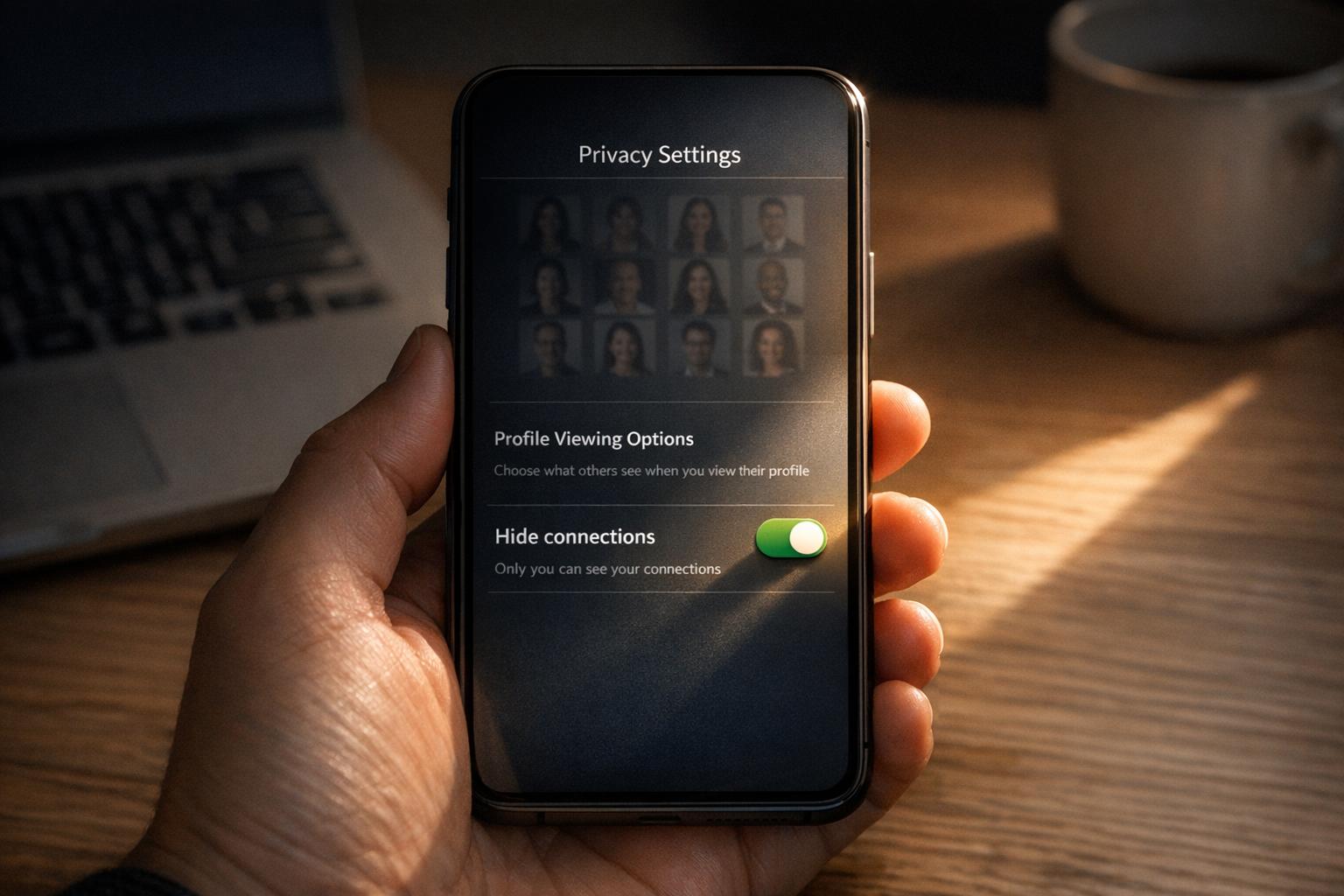
If you want to keep your LinkedIn connections private in 2026, you can easily adjust your settings. By default, LinkedIn allows your 1st-degree connections to view your entire contact list, which could expose sensitive business relationships. Here’s how to manage your privacy effectively:
- Go to Settings & Privacy: Access this via the Me icon (desktop) or your profile photo (mobile).
- Navigate to Visibility: Find the "Visibility of your profile & network" section.
- Toggle Connection Visibility: Turn off the "Who can see your connections" option to make your list private.
Additional tips include using Private Mode for anonymous profile browsing, limiting public profile visibility to control what search engines display, and managing activity notifications to avoid alerting your network to updates. Tools like Closely can also help with private LinkedIn outreach while maintaining security.
Take a moment to review these settings and secure your LinkedIn network today.
How to Hide Connections on LinkedIn

sbb-itb-8725941
How to Hide LinkedIn Connections: Step-by-Step Instructions

How to Hide LinkedIn Connections in 3 Steps
Keeping your LinkedIn connections private is straightforward and works the same way across devices, aligning with broader LinkedIn safety guidelines for profile protection. Here’s how you can adjust your settings to control who sees your network.
Accessing LinkedIn Privacy Settings
On desktop: Click the Me icon at the top of your LinkedIn homepage, then choose Settings & Privacy from the dropdown menu. Once there, navigate to the Visibility section in the sidebar.
Using the mobile app: Tap your profile photo in the top-left corner, scroll down, and select Settings (usually represented by a cog icon). Then, tap Visibility to proceed.
On a mobile browser: Tap your profile picture, then the Settings (cog wheel) icon in the top-right corner. From there, go to Visibility. Alternatively, you can directly visit "https://www.linkedin.com/psettings/" in your browser.
Adjusting Your Connection Visibility
After reaching the Visibility section, locate the "Visibility of your profile & network" area and select Connections (sometimes displayed as "Who can see your connections"). Here, you’ll find a toggle switch – turn it off to hide your connections.
"By default, your 1st-degree connections can see and browse your list of connections. However, you can manage who can see your connections from your Settings page." – LinkedIn Help [2]
Once you make this change, it’s applied instantly, and your connections list becomes private.
Confirming Your Privacy Settings
To ensure the changes are in place, verify that the toggle is set to Off or No. You can also ask a trusted connection to check your profile – they should only see mutual contacts.
"Your connections are now hidden from everyone on LinkedIn." – Hannah Dillon, Technology Writer and Editor, wikiHow [4]
If you’ve linked your profile with partner services, disable visibility there as well. It’s also wise to revisit Settings & Privacy > Visibility > Connections periodically, especially after LinkedIn updates, to confirm your preferences remain intact.
Other LinkedIn Privacy Settings for Professionals
Beyond managing who can see your connections, LinkedIn provides several privacy features to help you maintain control over your information while using the platform for networking, recruiting, or job searching. These settings work alongside connection privacy options to offer a more secure experience.
Browsing Profiles Anonymously
Want to check out profiles without revealing your identity? LinkedIn’s Private mode lets you do just that. When enabled, your visits will appear as "LinkedIn Member – This person is viewing profiles in private mode" in the "Who’s Viewed Your Profile" section [6]. This feature is particularly useful for recruiters, sales professionals, and job seekers who prefer to research discreetly.
"LinkedIn private mode is a platform function that lets you view other people’s profiles without their knowing your identity. Many professionals refer to this feature as ‘incognito mode’ on LinkedIn." – Neal Schaffer, President of PDCA Social [7]
To activate Private mode on a desktop, navigate to Me > Settings & Privacy > Visibility > Profile viewing options, and select Private mode [6][8]. On mobile, tap your profile photo, go to Settings > Visibility > Profile viewing options, and choose Private mode [8].
However, there’s a trade-off: when in Private mode, you won’t see who’s viewed your profile unless you’re a Premium subscriber [6][8]. If you’re actively networking, consider switching back to public mode to encourage mutual profile visits [7]. Next, let’s look at how to control what the public sees on your profile.
Limiting Public Profile Information
Another way to protect your privacy is by managing your public profile visibility. By default, LinkedIn allows search engines to index your profile, making it visible in search results. To stop this, head to Settings & Privacy > Visibility > Edit your public profile, and toggle Your profile’s public visibility to Off [5]. This removes your profile from external search engines like Google and Bing.
If you prefer a more selective approach, you can customize what parts of your profile are visible. For example, on the Edit your public profile page, use the toggles on the right to hide specific sections like your headline, summary, or work history from non-LinkedIn users [5]. You can also adjust your profile photo visibility to "1st-degree connections" so only trusted contacts can see your image [5]. Keep in mind, though, that changes to search engine visibility might take weeks – or even months – to reflect fully across platforms [7].
Controlling Activity Visibility
LinkedIn automatically notifies your network about changes like profile updates, job changes, or even when you’re online. If you’d rather keep these activities private, go to Visibility of your LinkedIn activity in settings and toggle Share profile updates with your network to Off [9]. This is especially helpful when making multiple updates or discreetly searching for a new job.
You can also manage your active status visibility. Under Manage active status, decide whether to show your online presence to everyone, just your connections, or no one at all [10]. Keep in mind, though, that if you hide your own active status, you won’t be able to see when your connections are online either [10].
Using Closely for Private LinkedIn Outreach

When it comes to LinkedIn outreach, scaling your efforts without jeopardizing privacy or risking account restrictions is a fine balance. Closely steps in to automate your campaigns while keeping your activity discreet and secure. Unlike manual outreach, this platform offers advanced automation tools that mimic human behavior with realistic timing and patterns, helping you avoid detection while maintaining efficiency.
How Closely Protects Your Privacy
Closely builds upon LinkedIn’s privacy tools to ensure your campaigns remain safe and confidential. It operates entirely in the cloud, using dedicated residential proxies to keep your IP address hidden from LinkedIn’s monitoring systems. This means your campaigns can run continuously, even when your computer is off, reducing local security risks.
One standout feature is the auto-pause function, which halts automated sequences as soon as a lead replies. This prevents awkward follow-up messages and allows you to seamlessly take over the conversation manually. For teams, the unified inbox includes teammate presence indicators, ensuring no two team members message the same prospect – an essential feature for maintaining professionalism and privacy.
Closely also complies with GDPR and CCPA regulations, offering tools to find verified contact details like emails and phone numbers without stepping outside legal boundaries. This ensures you can connect with prospects securely through private channels.
Closely Features for Privacy-Focused Users
Beyond privacy safeguards, Closely enhances your outreach with features designed for personalized and confidential communication. It integrates seamlessly with CRMs like HubSpot, Salesforce, and Pipedrive, ensuring all LinkedIn interactions stay synced with your secure database.
The platform’s AI-powered personalization uses profile and company data to craft tailored messages that feel genuine and human. This approach not only keeps your outreach subtle but also improves engagement. Users have reported a 35% increase in response rates, saving an average of 10 hours per week on manual prospecting, and generating 45% more pipeline opportunities through Closely’s automation tools [11].
Antonio D., Digital Strategist & Coach, shares: "Closely is a powerful tool for anyone looking to enhance their sales engagement. The platform is user-friendly and easy to navigate, making it accessible even for those who are not tech-savvy."
Best Practices for Safe Automation with Closely
To use Closely effectively while staying within LinkedIn’s safety guidelines, start every campaign with Warm-up mode. This gradually increases your activity levels, helping you avoid sudden spikes that could raise red flags. Use the human review feature to double-check AI-generated messages for professionalism before they go out.
Consider running multichannel campaigns to shift conversations off LinkedIn, reducing visibility and diversifying your outreach. Closely also offers smart safety limits, which include researched daily caps for connection requests and messages to keep your activity within safe boundaries. Finally, syncing all your touchpoints to your CRM ensures you maintain a private, secure record of your outreach efforts.
Ready to give it a try? Use promo codes BLACKFRIDAY20 (20% off) or XMAS15 (15% off) to start with savings [11].
Conclusion
Taking control of your LinkedIn privacy in 2026 is crucial to safeguarding your professional network from prying eyes, whether they’re competitors or malicious actors. The first step is simple: go to Settings & Privacy > Visibility > Connections and toggle the visibility off[3][4].
Beyond hiding your connections, there are other ways to strengthen your privacy. Use Private Mode when viewing profiles, tweak your activity settings, and limit what information shows up in external search results[1]. These steps work together to provide a solid layer of protection around your LinkedIn activity.
For those using automated outreach tools, platforms like Closely offer a way to manage LinkedIn campaigns efficiently while keeping your privacy intact. With features designed to streamline prospecting efforts, Closely ensures your activities remain discreet.
Your LinkedIn network represents valuable professional relationships, and protecting them should be a priority. With over 183,815 views on privacy guides by February 2026[4], it’s clear that many professionals understand the importance of securing this asset. Take a moment to review your privacy settings – it’s a small step that can make a big difference in keeping your network secure.
FAQs
Will hiding my connections also hide mutual connections?
If you choose to hide your LinkedIn connections, it doesn’t mean mutual connections will also be hidden. Mutual connections can still appear, depending on your privacy settings and whether your connections are visible to others. Make sure to review and adjust your settings carefully to manage what others can see.
Can I hide connections from specific people only?
No, LinkedIn doesn’t offer an option to hide your connections from specific individuals. The only available setting lets you make your entire connections list visible to Only you, effectively hiding it from everyone. This ensures that your connections stay private while giving you full control over who can see your network.
Does Private Mode affect who can see my profile views?
When you enable Private Mode on LinkedIn, your profile becomes anonymous while you browse. This means others won’t see your identity when you view their profiles. It’s a simple way to keep your activity discreet while navigating the platform.