
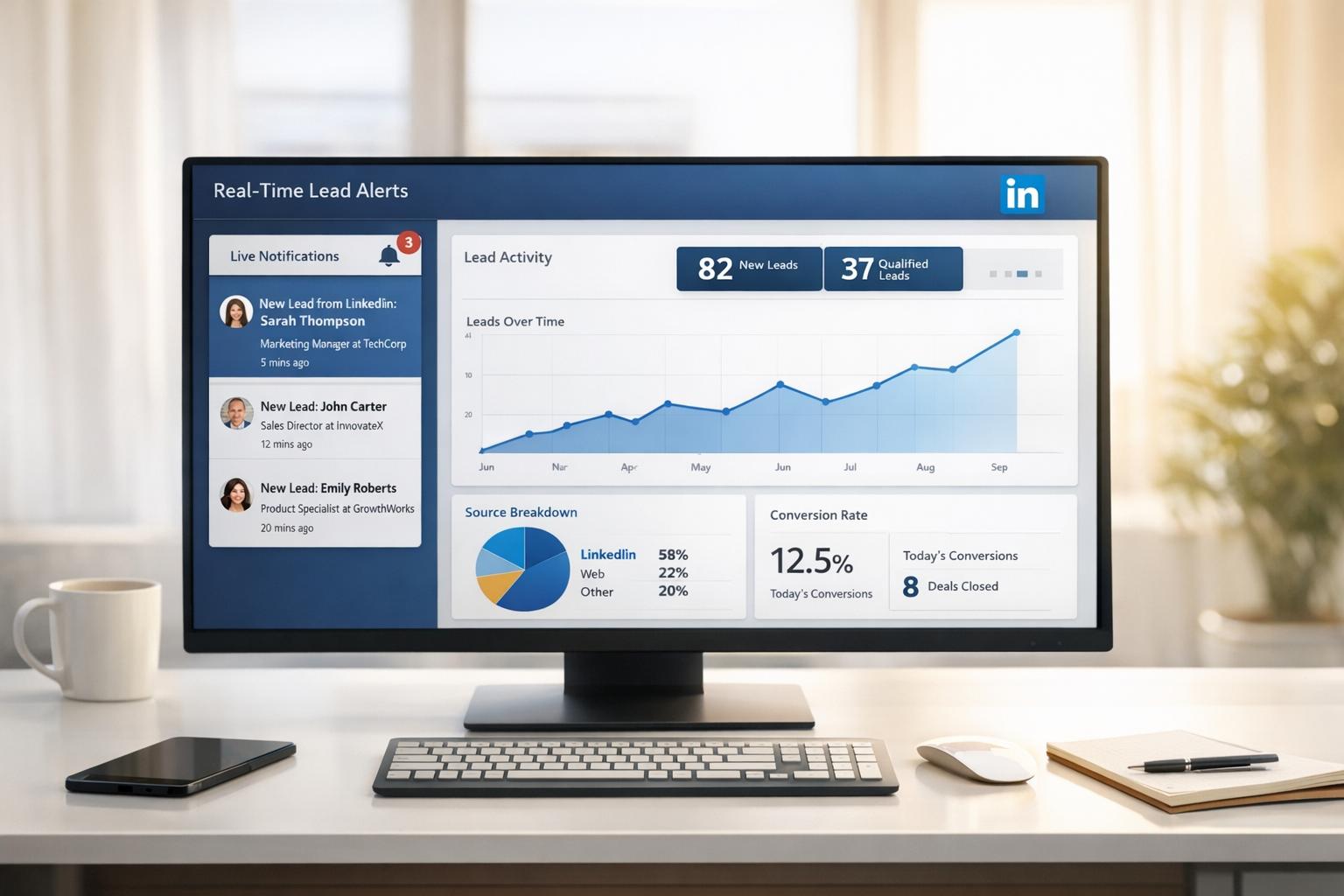
Want to know the moment a lead submits your LinkedIn form? Webhooks make it possible. They instantly notify your system when a lead is created or deleted, eliminating delays caused by manual data updates or API polling. This ensures your sales team can act immediately while prospects are still engaged.
Here’s how LinkedIn webhooks work:
- Instant Notifications: When a lead form is submitted, LinkedIn sends a JSON payload to your webhook URL in real time.
- Supported Events: Alerts are triggered for lead submissions (CREATED) and lead deletions (DELETED).
- Data Security: Notifications include a signature (
X-LI-Signature) for verification and must be processed within 3 seconds. - CRM Integration: Tools like Closely automate lead syncing and routing to your CRM, email, or Slack.
To set up LinkedIn webhooks:
- Create a LinkedIn Developer app and request access to the Lead Sync API.
- Configure a secure HTTPS endpoint to handle webhook notifications.
- Validate your webhook using LinkedIn’s challenge-response mechanism.
- Connect your webhook to tools like Closely for automated lead management.
How LinkedIn Webhooks Work for Lead Alerts
What Are Webhooks?
Webhooks are a way to automatically send important LinkedIn events directly to your system using HTTPS POST. This eliminates the need for manual CSV downloads or constant API polling. For example, when a prospect fills out your lead form on LinkedIn, a webhook instantly delivers the data to your system. Your designated webhook endpoint – an HTTPS URL – receives the notification, processes it, and triggers specific actions. These actions could include notifying your sales team, updating your CRM, or starting an automated email sequence.
To ensure security, LinkedIn includes an X-LI-Signature header with each notification, allowing you to verify its origin. Your webhook URL must be HTTPS-compliant, and your server needs to respond with a 200 OK status within 3 seconds to confirm receipt of the notification [1].
Let’s dive into the specific LinkedIn lead events that activate these webhooks.
LinkedIn Lead Events That Trigger Webhooks
LinkedIn webhooks are triggered by two key actions: CREATED (when a lead form is submitted) and DELETED (when a lead is removed). Each event is tied to a specific leadType, which indicates the source of the lead [8]:
| Lead Type | Description |
|---|---|
| SPONSORED | Leads from LinkedIn ads |
| EVENT | Leads from LinkedIn Event pages |
| COMPANY | Leads from organic Company pages |
| ORGANIZATION_PRODUCT | Leads from specific Product pages |
These events are essential for real-time engagement.
The CREATED event triggers immediate alerts, enabling your sales team to act while the prospect is still engaged. Whether the lead form is submitted via a sponsored ad, your company page, or an event registration, LinkedIn sends a webhook notification the moment the prospect clicks "Submit."
The DELETED event helps you keep your data accurate. If a lead is removed for privacy or compliance reasons, LinkedIn notifies your system so you can update your records. Since LinkedIn retains lead data for up to 365 days, these deletion alerts ensure your CRM stays in sync [4].
LinkedIn Webhook Data Format
Webhook notifications from LinkedIn arrive as JSON payloads, containing structured information about the lead event. Each notification includes a unique Notification ID to help with deduplication and prevent processing the same event multiple times [1].
Here’s what a typical JSON payload includes:
| Field Name | Description |
|---|---|
type |
Always "LEAD_ACTION" for lead-related webhooks |
leadAction |
Specifies the event: "CREATED" or "DELETED" |
leadGenFormResponse |
Unique identifier for the specific lead response |
leadGenForm |
Identifier for the form that generated the lead |
owner |
The Sponsored Account or Organization owning the lead |
associatedEntity |
The ad, event, or page that generated the lead |
occurredAt |
Timestamp (in epoch milliseconds) of the event |
The leadGenFormResponse identifier is crucial for retrieving complete lead details, such as the prospect’s name, email, phone number, job title, and any custom fields you’ve set up. You can use this identifier with LinkedIn’s Lead Sync API to pull the full data set [8].
The occurredAt field uses epoch time (milliseconds since January 1, 1970), making it easy to calculate response times and monitor lead activity.
To avoid duplicates, implement deduplication using either the Notification ID or the leadGenFormResponse identifier. This ensures your system checks whether a notification has already been processed before taking action, preventing duplicate CRM entries or repeated alerts to your sales team [1][8].
This structured data format is designed to streamline lead response automation, making it easy to integrate with tools like Closely’s real-time alert system.
What is a Webhook? Webhooks for Beginners
Prerequisites and Setup Requirements

LinkedIn Webhook Setup Process: 4-Step Integration Guide
To start receiving real-time LinkedIn lead alerts, you’ll need to meet specific technical and account requirements. The process involves setting up a LinkedIn Developer application, configuring a secure webhook endpoint, and preparing your Closely account to handle incoming notifications seamlessly.
Technical and Account Requirements
First, you’ll need to create a LinkedIn Developer application and request access to the Lead Sync API product. Keep in mind, LinkedIn only grants access to qualified developers.
A verified LinkedIn Company Page is essential, and it must have a Super Admin to verify your developer application. Only verified Company Pages and business emails are accepted – personal emails like Gmail or Yahoo won’t work [3].
Your application requires three key permission scopes:
- r_marketing_leadgen_automation: Grants access to lead data.
- r_ads: Allows retrieval of account structures.
- r_organization_admin: Provides page access [3].
Additionally, you’ll need a public HTTPS endpoint to receive webhook notifications. This endpoint must verify the X-LI-Signature header using HMAC-SHA256 with your application’s clientSecret [1]. It also needs to respond within 3 seconds to a GET challengeCode request by returning a hex-encoded HMAC-SHA256 challengeResponse. LinkedIn re-validates your endpoint every 2 hours, and three consecutive failed validations will result in it being blocked [1].
| Requirement Category | Specific Requirement | Details |
|---|---|---|
| Account | Verified Company Page | Must be verified by a Super Admin; only verified pages qualify [3] |
| Account | Business Email | Must be verified; personal emails are not accepted [3] |
| Technical | Protocol | HTTPS only; non-HTTPS and tools like ngrok aren’t supported [1] |
| Technical | Security | Requires HMAC-SHA256 verification for the X-LI-Signature header [1] |
| Technical | Validation | Must handle GET challenge requests within 3 seconds [1] |
| Permissions | r_marketing_leadgen_automation | Needed for accessing lead gen forms and response data [3] |
| Permissions | r_ads | Necessary for retrieving sponsored account and campaign structures [3] |
| Permissions | r_organization_admin | Required for page access [3] |
Configuration Checklist for U.S. Users
For U.S.-based operations, make sure your webhook is configured with the creationLocale set to country "US" and language "en" [7]. Your backend should also convert LinkedIn’s epoch timestamps into the U.S. standard date format (MM/DD/YYYY) and adjust for time zones like EST or PST [9].
To ensure consistent data capture, map lead information using predefinedField values rather than custom labels. This helps maintain standard U.S. lead attributes such as zip codes and phone numbers [4].
Keep in mind that LinkedIn access tokens expire after 60 days, while refresh tokens last for 365 days. To monitor token validity, implement a "heartbeat" check by calling the /me API every 24 hours [4].
The user setting up the integration must have one of the following roles: Account Administrator, Campaign Manager, or Leads Manager [6]. They also need at least Viewer access on the Ad Account and either Lead Gen Forms Manager or Administrator privileges on the LinkedIn Company Page [6][7].
Once these steps are completed, you’ll be ready to configure your webhooks and integrate them into Closely.
Closely Account Setup for Webhooks

After meeting the prerequisites, the next step is to integrate these settings into your Closely account for smooth webhook processing. Closely offers subscription plans starting at $49 per month for one LinkedIn account, with pricing scaling based on the number of accounts you need.
Your Closely workspace must include at least one LinkedIn account with the appropriate permissions. This account will act as the authenticated user to receive webhook notifications. Once your LinkedIn Developer application is approved and your webhook endpoint is validated, you can connect it to Closely’s webhook management system.
Closely simplifies the technical aspects of webhook handling by managing tasks like signature verification, deduplication, and timestamp conversion. It automatically routes incoming lead notifications to your designated alert channels and triggers your preconfigured automation workflows. Since LinkedIn stores lead data for up to 365 days, Closely advises performing an initial "pull" of historical leads when first connecting your account to avoid missing any opportunities [4].
How to Configure LinkedIn Webhooks
Now that you’ve got the technical and account setup sorted, it’s time to configure your LinkedIn webhooks and link them to Closely. This step ensures a smooth connection by registering your webhook in the LinkedIn Developer Portal, passing LinkedIn’s validation process, and mapping lead data directly to your Closely workspace.
Registering a Webhook in LinkedIn Developer Portal

To set up a webhook, LinkedIn requires you to use the Lead Notification Subscriptions API instead of the standard Webhooks tab in the Developer Portal. Make sure your app has the r_marketing_leadgen_automation permission [7]. Also, your webhook URL must strictly use HTTPS.
When you submit the webhook URL, LinkedIn sends a challenge request to confirm ownership. Your endpoint must respond to a GET request containing a challengeCode (a type-4 UUID) within 3 seconds. The response should include a JSON payload with the original challengeCode and a computed challengeResponse using this formula:
Hex-encoded(HMACSHA256(challengeCode, clientSecret)).
The response must be returned with a 200 OK status and a Content-Type of application/json [1].
Validating Webhook Notifications
LinkedIn re-validates your webhook every 2 hours. If the validation fails three times in a row, your webhook will stop receiving notifications. Each notification LinkedIn sends includes an X-LI-Signature header, which is an HMAC-SHA256 hash generated using your clientSecret. Always verify this signature before processing any lead data.
Additionally, your webhook must return a 2xx HTTP status code for every notification it receives. If your webhook gets blocked, you can manually revalidate it through the Developer Portal or by using the revalidateWebhook action in the DeveloperWebhooks API [9].
Once your webhook passes validation, it’s ready to integrate with Closely for real-time lead alerts.
Connecting Webhooks to Closely
After validation, you can connect your webhook to Closely to receive real-time lead notifications. Closely simplifies the process by automatically handling signature verification, deduplication, and timestamp conversions.
To connect, go to the webhook management section in your Closely workspace and enter the validated LinkedIn webhook URL. Closely maps incoming lead data to your lead records using predefined field values, ensuring accurate data capture for U.S.-specific attributes like zip codes and phone numbers [4].
You can also set up routing rules to assign leads to specific team members or workflows based on criteria such as job title, company size, or location. Additionally, perform an initial data pull to retrieve historical leads from LinkedIn’s 365-day archive, capturing any missed opportunities. As a precaution, Closely suggests scheduling a periodic data pull every 24 hours to recover leads in case of webhook outages or missed notifications [4][6].
sbb-itb-8725941
Setting Up Real-Time Lead Alerts in Closely
Once the webhook is validated and connected, Closely turns every notification into actionable alerts in real time. By integrating seamlessly, the platform ensures your team can engage with leads the moment they come in [1].
Automating Lead Routing and Prioritization
After notifications are set up, Closely gets to work by converting raw data into meaningful actions. It automatically routes leads to the right team members based on specific criteria like job title, company size, industry, or even geographic location. For teams in the U.S., leads can be directed to regional account executives based on states or zip codes, ensuring efficient coverage.
Closely also scores leads by analyzing intent signals. High-priority leads – such as decision-makers from target companies or prospects who’ve filled out detailed forms – are flagged for immediate attention. This system helps your team focus on the leads most likely to convert, saving time and boosting productivity.
Creating Instant Notifications in Closely
When a new lead comes in, Closely sends out instant alerts across multiple channels. You can set up email notifications for specific team members, create tasks directly in your CRM, or even trigger automated outreach sequences within seconds. The platform’s unified inbox keeps all responses in one place, so your team doesn’t have to juggle multiple tools to track conversations.
Closely also keeps an eye on your notification flow. If LinkedIn changes your webhook status to "BLOCKED" due to delivery issues, the platform alerts you and provides the revalidateWebhook action to restore real-time alerts [9]. From there, Closely uses AI to enhance and personalize your outreach efforts across various channels.
Using AI Personalization and Multichannel Campaigns
Closely’s AI dives into webhook data – like form submissions, company details, and LinkedIn profiles – to craft personalized outreach messages. Instead of relying on generic templates, your team can send emails and LinkedIn messages that directly address the lead’s specific challenges or interests.
The platform also supports multichannel campaigns across LinkedIn, email, and phone. For example, if a lead submits a form, they might receive a personalized LinkedIn connection request first. If there’s no response, an email follow-up can be sent shortly after. This coordinated strategy boosts engagement while maintaining a personal and human tone, even at scale.
Testing and Monitoring Your Webhook Integration
With your webhook now connected to Closely, it’s time to ensure everything works seamlessly and continues to perform as expected.
Testing Webhook Setup and Data Accuracy
Before you go live, it’s crucial to confirm that your webhook is receiving data correctly from LinkedIn. Start by submitting a test lead through LinkedIn Campaign Manager using one of your Lead Gen Forms. This full test ensures that data flows properly from LinkedIn to Closely’s data storage system [4].
Make sure to validate the X-LI-Signature header with each notification to confirm its authenticity. Each notification should return a 2xx HTTP status within 3 seconds and includes a unique Notification ID to avoid processing duplicates [1].
Monitoring Performance and Troubleshooting
Once you’ve verified data accuracy, ongoing monitoring is essential to catch and resolve potential issues early. If LinkedIn’s automated re-validation fails three times in a row, your webhook will enter a "BLOCKED" state and stop receiving notifications [1]. Closely will notify you when this happens and provide the revalidateWebhook action so you can restore the connection [9]. Additionally, you can use the DeveloperWebhooks API Finder to identify BLOCKED URLs and address the root cause.
Closely’s error logs can help troubleshoot problems such as slow response times, signature mismatches, or permission errors. Keep in mind that LinkedIn access tokens expire after 60 days, so it’s a good idea to run daily heartbeat checks using LinkedIn’s /me endpoint to ensure token validity [4].
If any notifications are missed due to outages, Closely can retrieve all leads from LinkedIn every 24 hours, ensuring no data slips through the cracks [4].
Improving Lead Engagement Based on Data
Once your webhook integration is up and running smoothly, the data you collect can help refine your lead engagement strategy. Monitor metrics like response times, conversion rates, and engagement trends to pinpoint which lead sources and form types yield the best results.
Use webhook data to optimize follow-up timing. For instance, if leads from sponsored ads are more likely to convert when contacted within 15 minutes, adjust your notification settings and team schedules to align with this insight. Closely’s reporting dashboard can also help you identify which team members respond the fastest and achieve the highest conversion rates – valuable information you can share across your organization to improve overall performance.
Review your lead scoring criteria regularly, using actual conversion data. If certain job titles or company sizes consistently result in better conversions, update your prioritization rules to ensure those leads get immediate attention. This data-driven approach helps you fine-tune your real-time alert system, boosting lead engagement and maximizing the return on your LinkedIn campaigns.
Conclusion
Integrating LinkedIn webhooks transforms lead management by providing instant notifications whenever a prospect takes action. Instead of waiting or relying on manual updates, webhooks seamlessly push lead data straight to your CRM, Slack, or email, ensuring your team can act immediately [5][2].
This real-time responsiveness allows your sales team to engage with prospects at the peak of their interest. With every lead generated through LinkedIn campaigns, timely follow-ups are critical – and webhooks make this process effortless, reducing manual tasks and minimizing errors.
Closely takes the complexity out of the equation by automating the technical setup. The platform not only syncs new LinkedIn connections to your CRM but also enriches records with verified contact details. This ensures your team has all the information they need for tailored outreach, without the hassle of juggling multiple tools or manually updating records.
By combining real-time alerts with automated multichannel campaigns, you can deliver immediate, personalized follow-ups that scale your outreach efforts. For instance, when a prospect accepts your connection request, Closely can automatically send a follow-up email. This approach balances automation with a personal touch, helping you turn initial digital interactions into lasting customer relationships.
Using the webhook setup and automation strategies discussed here, you can refine your follow-up timing and lead scoring processes. Quick responses to high-intent leads drive better conversion rates, and with Closely managing the automation, your team can focus on what they do best: building connections and closing deals.
FAQs
How do I secure and validate my LinkedIn webhook endpoint?
To keep your LinkedIn webhook endpoint secure, make sure you serve it over HTTPS. This ensures that all data transmitted between LinkedIn and your server stays encrypted. When you register a webhook, LinkedIn sends a validation request containing a X-LinkedIn-Challenge-Token. Your endpoint must respond with this exact token in the response body and return a 200 status code to confirm ownership of the URL.
After verification, LinkedIn attaches a signature header (like X-LinkedIn-Signature) to every payload. To verify the payload’s authenticity, use the client secret from your LinkedIn app to generate an HMAC-SHA256 hash of the request body. Compare this hash with the signature provided in the header. If they match, you can trust the payload. Always keep your client secret safe – never include it in client-side code.
For extra protection, you can implement IP whitelisting to restrict access to LinkedIn’s IP ranges. Additionally, use OAuth 2.0 tokens for API calls to secure communication further. To maintain reliable performance, make sure to implement rate limiting, log incoming requests, and handle retries efficiently. These precautions will help you secure your webhook and ensure it functions smoothly for real-time updates.
What are the advantages of using LinkedIn webhooks for managing leads?
LinkedIn webhooks deliver instant lead notifications, giving sales and marketing teams the ability to act quickly when new leads come in. Unlike older methods that rely on scheduled data updates, webhooks push lead details directly to your system as they happen. This means your team can respond while the lead’s interest is still fresh.
Integrating webhooks with tools like CRMs or marketing platforms eliminates the need for manual data entry, reducing errors and saving time. This automation speeds up lead routing, simplifies workflows, and allows teams to track lead engagement and conversions in real time. Plus, webhook integrations can trigger automated actions – like sending alerts, assigning follow-up tasks, or starting email campaigns – keeping your team organized and responsive.
With LinkedIn webhooks, managing leads becomes more efficient. You’ll spend less time on repetitive tasks and more time building meaningful connections with potential customers.
What should I do if my LinkedIn webhook stops sending lead alerts?
If your LinkedIn webhook stops delivering lead alerts, the first thing to check is whether your webhook endpoint is accessible and returning the correct HTTP status code. LinkedIn requires a 200 OK response for successful deliveries. If your endpoint responds with a status like 4xx or 5xx, retries can be paused. To troubleshoot, use tools such as Postman or cURL to test your webhook URL and ensure it’s responding properly. Additionally, examine your server logs for issues like timeouts, SSL/TLS errors, or any other misconfigurations that might disrupt the connection.
After verifying your endpoint, make sure your webhook subscription is still active and validated. When you create a subscription, LinkedIn sends a validation challenge that must be acknowledged correctly. If this step is missed or handled incorrectly, the subscription may become inactive. Check the LinkedIn developer console to confirm the status of your subscription, and revalidate it if needed.
To avoid similar problems in the future, adopt best practices such as logging webhook payloads, using exponential backoff for retries, and ensuring idempotent processing. Implementing monitoring tools to track delivery metrics can also help you quickly spot and resolve issues, keeping your lead alerts dependable and consistent.